Select Folder
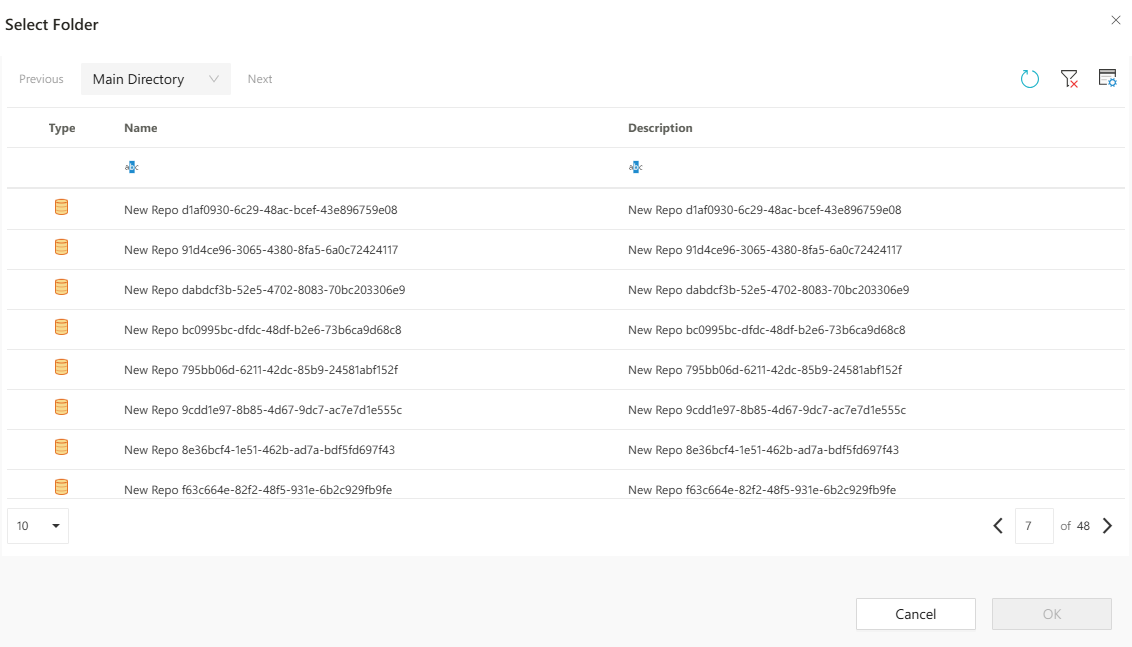
Allows selecting a folder path from the document management system (DM) where the new project will be saved.
Folder Selection Dialog
When creating a new project, clicking the folder icon next to the Save Path (DM) field opens the Select Folder dialog. This panel allows users to browse the directory structure and choose a save location from the document management system (DMS).
Dialog Components
Navigation and Folder Tree
Back / Forward: Navigate between directory levels.Main Directory Dropdown: Quickly jump to root-level directories.
Folder Table Columns
Type: Storage type of the folderName: Name of the folderDescription: Folder description, if available
Action Buttons
Cancel: Closes the dialog without saving.Confirm: Saves the selected folder as the project path (only active after a folder is selected).
Additional Controls
These tools enhance the folder browsing experience:
Refresh: Reloads the folder list.Clear Filters: Removes all active filters.Column Settings: Allows showing/hiding or reordering visible columns such as Type, Name, and Description. Use filters and column settings to customize the folder view to your needs.